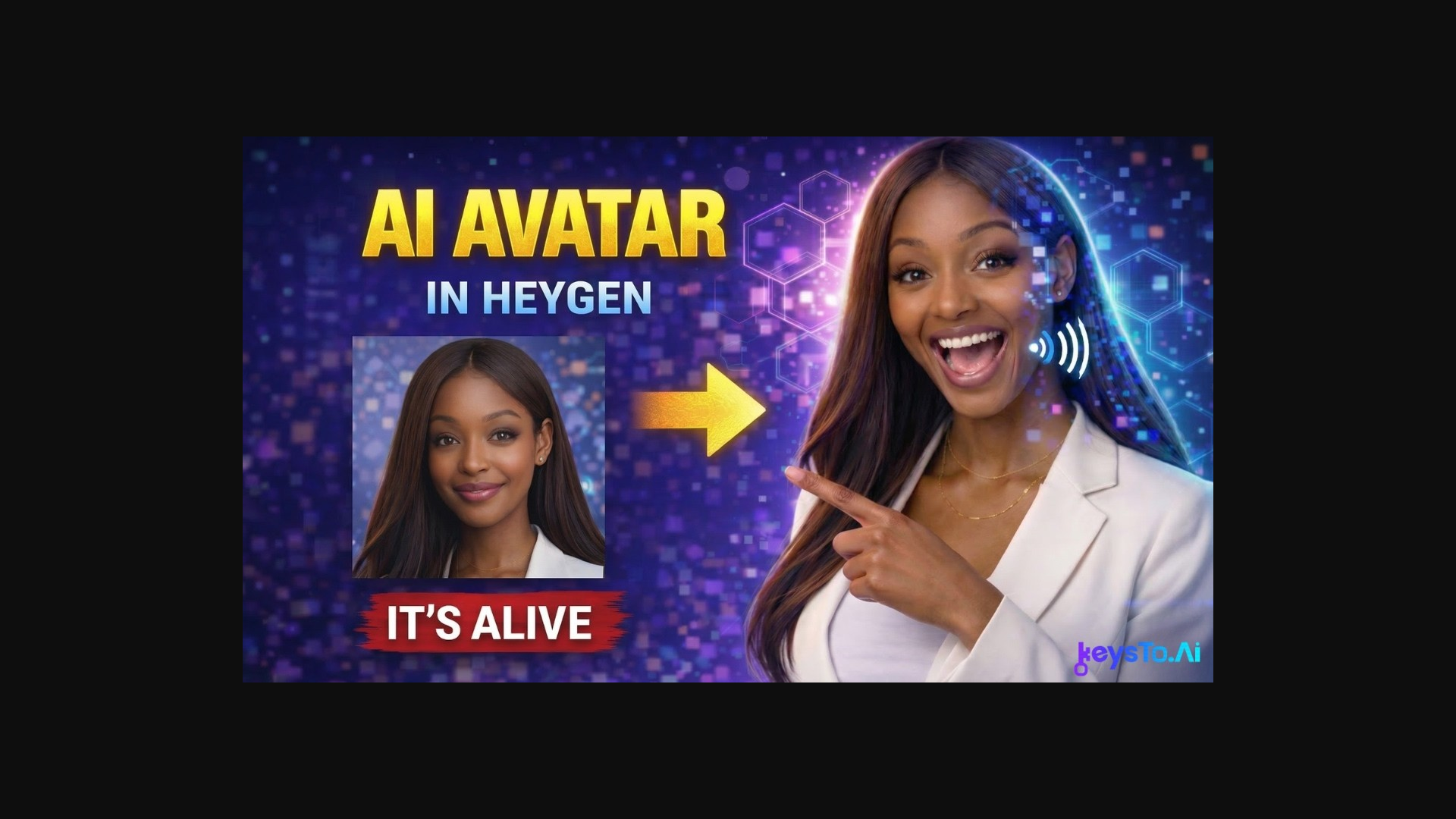
Faceless channels are booming, but most AI avatar tools look robotic and cheap. HeyGen is different. The avatars look natural, the lip-sync is precise, and the whole process takes under 10 minutes.
Here is exactly how I build my AI avatars for Keys to AI content.
Step 1: Choose Your Photo
Start with a clear, well-lit headshot. Face the camera directly, neutral background, good lighting. The quality of your source photo directly affects the quality of your avatar.
- Face the camera straight on
- Use a plain or neutral background
- Ensure even lighting (no harsh shadows)
- High resolution (at least 512x512)
- Neutral expression works best
Step 2: Upload to HeyGen
In HeyGen, go to "Avatars" → "Upload Photo". Upload your headshot and wait for the processing — it takes about 1-2 minutes. HeyGen generates a 3D model from your 2D photo.
Step 3: Add Your Voice
You have two options: record your voice directly in HeyGen, or use a voice clone from ElevenLabs. I use ElevenLabs because the quality is better and I can use the same voice across multiple tools.
If you use ElevenLabs, export your voice clone as an MP3 and upload it to HeyGen. This gives you the best of both worlds: ElevenLabs voice quality + HeyGen avatar visuals.
Step 4: Write Your Script
Write your script in the HeyGen editor. Keep sentences relatively short — the lip-sync works best with natural pauses. Read it out loud to check the rhythm before generating.
Step 5: Generate and Download
Hit generate and wait. Processing takes 2-5 minutes depending on video length. Download the MP4 and drop it into your editor — I use Canva for quick edits and captions.
Best Practices
- Keep videos under 3 minutes for best lip-sync quality
- Use hand gestures sparingly — HeyGen handles them okay but not perfectly
- Add captions in post-production — HeyGen captions are basic
- Test with a 10-second clip before committing to a full video
Frequently asked questions
How much does HeyGen cost?
HeyGen has a free plan for testing, and paid plans start at $24/month. If you publish avatar videos regularly, the paid tier is what unlocks the length and quality you need.
Can I use my own voice with a HeyGen avatar?
Yes — two ways. Record your voice directly in HeyGen, or clone your voice in ElevenLabs, export the audio as an MP3, and upload it. The ElevenLabs route gives noticeably better voice quality.
How long does it take to create an avatar video?
Under 10 minutes end to end once your avatar is set up: paste your script, generate, and download. Processing itself takes about 2–5 minutes depending on video length.
Want the full prompt pack for writing avatar scripts?
Get the Prompt Pack →